Once upon a time (back in the late 80s) there was just one proper file manager, the legendary Norton commander. Its text-based dual-pane interface defined a paradigm for file management productivity. Since then, every other computer programmer seems to have developed (or is planning) his own file manager... there have been hundreds released over the years! So how can you pick the right one for you? There are 93 alternatives to xplorer² for Windows 7/10/11, both free and paid. In this review we focus on 5 popular user choices, and put them to the test in various heavy-duty tasks, searching for the objective king of the hill, the "best" windows file manager software.
The most popular software tools are tested and compared in various heavy-duty file management tasks.
◪ Jump to the results →
 What makes a good file manager?
People get quite particular (fanatical even) with their file manager of choice. It is meant to keep you happy, getting the job done without taxing your brain (or annoying you), and be quick with it. As the saying goes, you don't put lace on a chainsaw; it's a tool, not an oil painting. Still many people fall for appearances, to the detriment of their productivity. It is an ecumenical pitfall. Understanding there are many different personalities, here's a short list of desired features from a file manager:
- Fully featured. Offer complete browsing experience everywhere (local/network/cloud/FTP), document preview, search for files using rich attributes, advanced rename/copy operations, synchronize and backup, finding duplicates etc.
- Tabs and dual panes. We concurrently juggle with many folders. The dual pane feature is very handy for comparing, copying and moving files around your hard disk.
- Ergonomic. The above functionalities should be executed with ease and consistency. The user interface should balance control with ease of use, to avoid intimidating the user. Especially so the mature user — we're not getting any younger
- Lightweight. Sure, today's computers can manage any program's abuse, but a file manager is running all the time in the background, and economizing on system resource use is definitely not to be scorned.
- High performance. This part is frequently overlooked. You are in search of an alternative file manager because you have lots of files, so you need help browsing large folders and working with tons of files. It's not about just "having wheels" but how fast the wheels can turn!
- Pleasing to the eye. Not a personal requirement, but obviously staring at something pig ugly is counter-productive, however ergonomic it might be.
 Directory Opus by GP Software [DO]
 One Commander by Milos Paripovic [O1]
 Total Commander by Ghisler software [TC]
 xplorer² by Zabkat [X2]
 XYplorer by Cologne Code Company [XY]
All these programs offer a free trial so you can test them with no obligation. Before we begin the File Manager Olympics, here's a table summarizing the main contenders for the title of Best file manager Windows software. The listed price is for the cheapest edition available.
|
Information correct as of 6 Feb 2026
I will first quickly summarize each explorer replacement program, followed by result of timing tests. The brief presentations will comprise:
- A soundbite from the program makers
- An AI-generated summary of user opinions appearing in alternative to comparison website
- My personal remarks after a quick spin of each program (item selection, filtering, keyboard friendliness)
Obviously one would need long time of evaluation to get the real buzz out of these complex software products. I merely skimmed the surface trying a few basic selection, filtering and drag drop operations, to get a feeling how easy is each program to start working with.
Directory Opus
Directory Opus is an "everything and the kitchen sink" explorer replacement. According to the website:
Are you frustrated by the limitations of Windows Explorer? Directory Opus is a complete replacement for Explorer, with far more functionality than any other file manager available today.
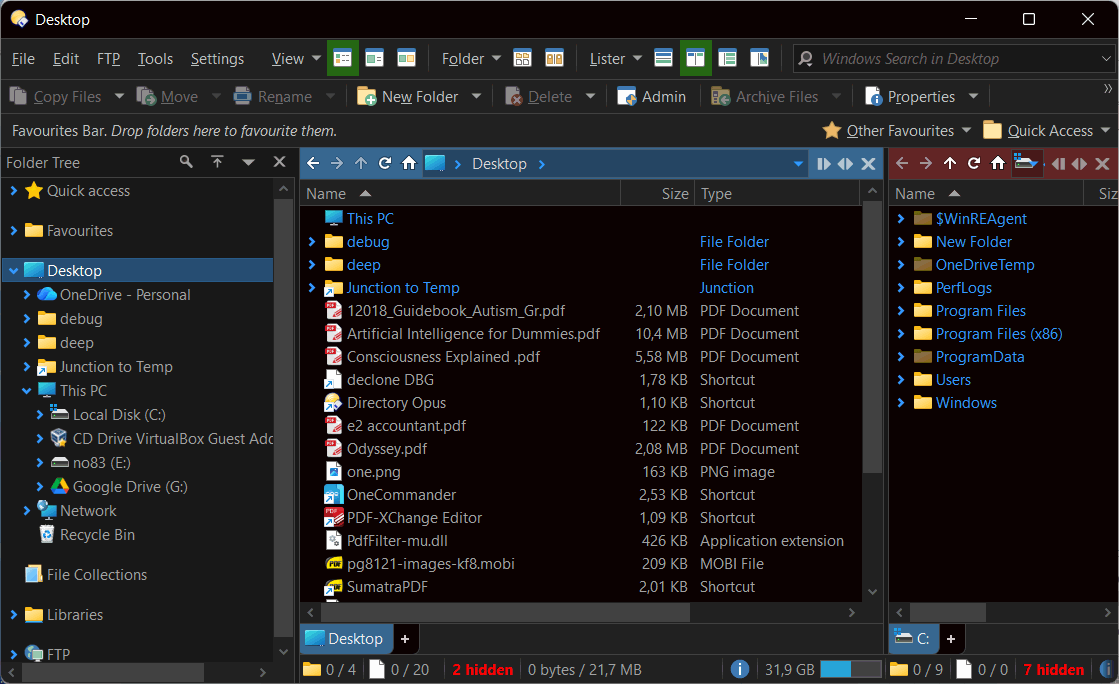
User Comment summary: Directory Opus is praised for its powerful and customizable features, such as dual-pane navigation, metadata preview, and wide extension support, which make it a robust alternative to standard file managers. Despite being expensive, many users find its feature set invaluable for efficient file management, particularly for daily users managing extensive files. Criticism mainly revolves around its pricing and additional charges for specific functionalities like advanced FTP. Overall, its extensive capabilities often justify the cost for those needing a comprehensive file management solution.
My quick impression: The window UI is the busiest in this file manager collection. There are tons of little arrows up, down, left and little status indicators everywhere (duplicated for each of the dual panes). Item selection with the mouse is like you expect from windows file explorer, including <CTRL> for multi-selections, and drag-drop is also standard. I am still looking for a way to filter a folder and show only a few matching items. Typing a few letters opens a little window that just highlights matching names without filtering them out. It must be there somewhere... only good luck finding it!
Talking about menus, I was impressed with how few menu commands there are listed. Perhaps there is a config switch somewhere to see more commands. You get a little glimpse of the complexity pressing <CTRL+F> to start a file search — the search panel/dialog has more options than the space shuttle! Search results are added to the current tab, a bit cramped for my liking.
Directory Opus is acclaimed as the "Rolls-Royce" of file managers. According to my tests though it was systematically the worst performer of the lot in complex sorting and searching file operations — more akin to a Lada than royalty :) It was the only one that crashed during my tests as well, without any severe provocation.
|
PROS
 Tons of functions and settings
Professional polish
Tons of functions and settings
Professional polish
|
CONS
 Expensive
Rather slow
Steep learning curve
Expensive
Rather slow
Steep learning curve
|
One Commander
One Commander is the junior program in this group, developed recently in comparison to the others. According to their website:
OneCommander is a modern file manager for Windows 11 and Windows 10. Features include tabs, dual-pane browsers, columns navigation, built-in preview, editable themes, color tags, and much more. Free for home use and no ads
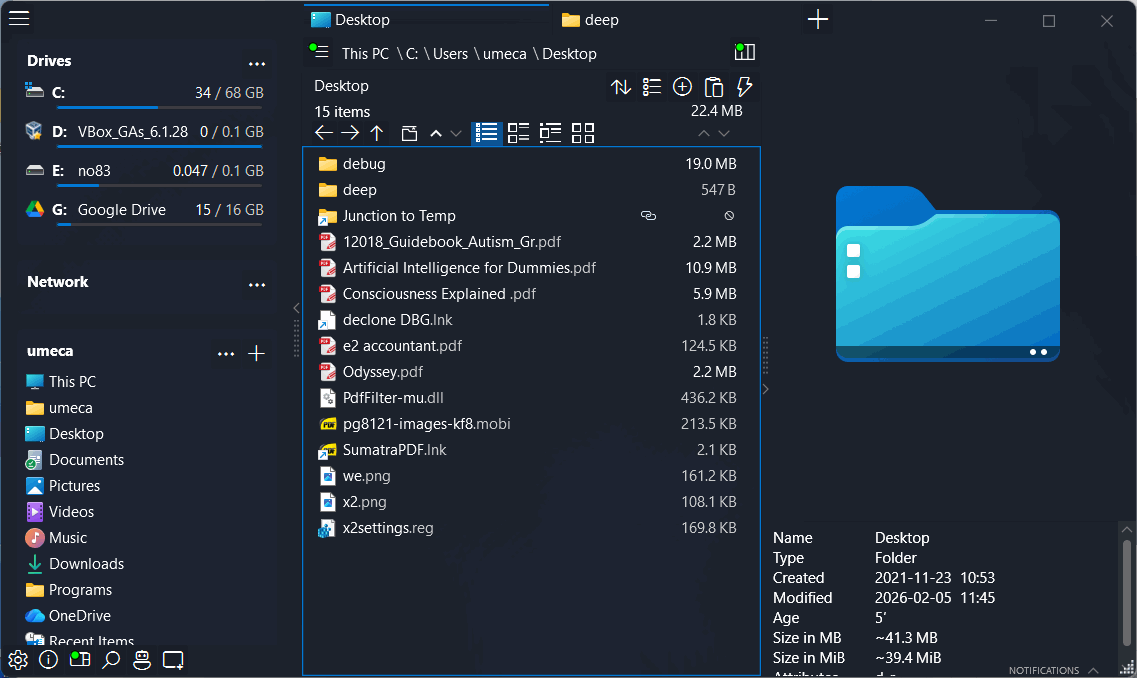
User Comment summary: OneCommander receives praise for its modern interface, ergonomic design, and advanced features like columns and tabbed browsing. Users value frequent updates, customization, and tools such as file batch management and integration with Teracopy. Some concerns include occasional bugs, performance slowdowns, UI focus issues—especially with Miller’s Columns—and missing functionalities like certain tab or renaming actions. Overall, it's recommended, but some users seek more stability and intuitive behavior.
My quick impression: One commander shouts "modern UI" everywhere. There is no menu, just a few buttons here and there. I suppose it helps that the program doesn't actually do much other than browsing and basic copying/rename operations. It could easily be mistaken for a phone app.
On the left there's a tree/location pane, in the middle you can see a folder and to the right a preview of the selected item. Once (I think) I managed to turn it into dual pane mode, but then I closed the second pane and couldn't remember how to turn it back on. Item selection works in the standard way, but drag drop shows a custom image overlay that doesn't make it very clear where the drop is going to be — there is a highlight but no destination folder name. Typing a few characters kicks in the automatic filtering mode. Intuitive.
I don't think One Commander supports file properties. The most details you can see are sizes and dates, very poor use of the hundreds of system file properties exposed by windows shell. Its file search is only for name, not even content search!? Like I said more of a file browser than a file manager. Being the Benjamin in this group of reviewed programs, we have to allow it time to grow.
It sports a rare feature: Mac Finder-like "miller columns" that you don't see in many windows file managers. xplorer² also offers a similar column browsing mode. It is a kind of a tree that shows neighbouring folder contents, and opens a new mini-folder pane each time you open another folder. It is a curiosity that most Windows users wouldn't make any use of.
|
PROS
Tasty modern UI
Fast name search
|
CONS
Limited file management tools
High resource consumption
|
Total Commander
Total commander is the first non-text UI file manager dating from windows 3.1 era. According to their website:
Features in Total Commander include: Two file windows side by side, Enhanced search function, Compare files / synchronize directories, Quick View panel with image and video display, archive handling, Built-in FTP client, Multi-rename tool, ... and many more!
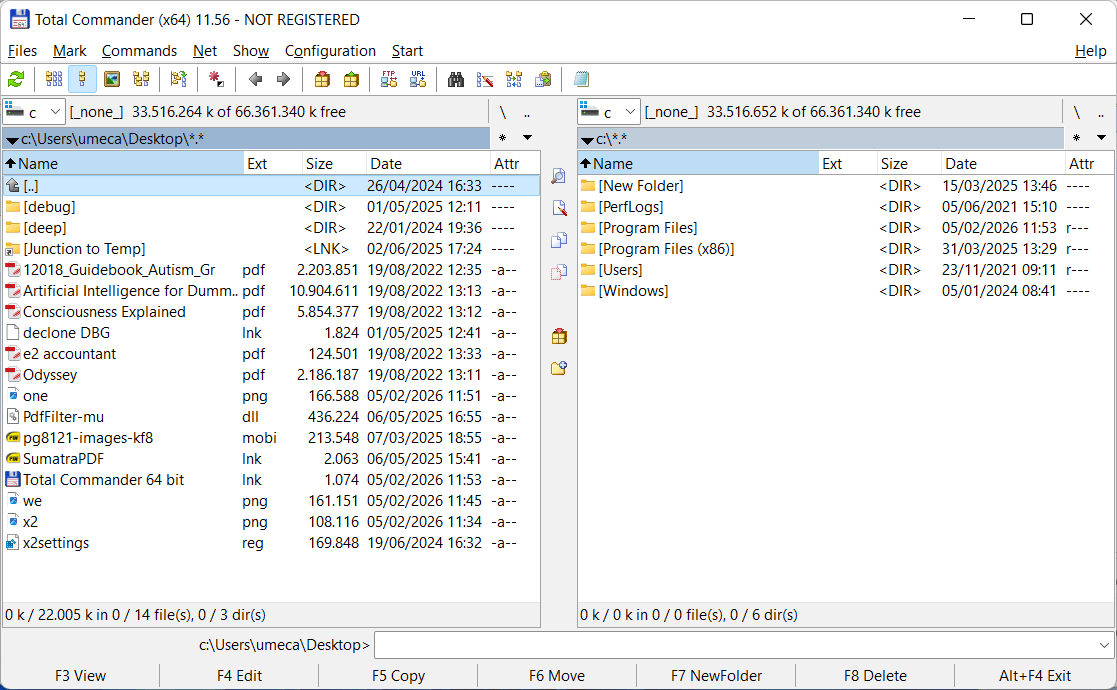
User Comment summary: Total Commander is widely regarded as a powerful and essential file manager, favored for its extensive features like dual-pane navigation, plug-in extensibility, and comprehensive file operations. While some users find the interface outdated, many appreciate its stability and functionality. Criticisms include a high price point and a learning curve for new users. Alternatives like Double Commander and Directory Opus are occasionally mentioned, but TC's long-standing reputation and diverse capabilities keep users loyal.
My quick impression: Total commander is the first windows GUI (not text interface) file manager, and it is frozen in time sometime in last century. Until recently it would present files in the windows 3.1 system block font. Although this has stopped, the window looks dated, 8 bit toolbar icons and everything. Having been around for over 30 years, it has built a strong following and is by far the most widely used file manager — I bet there are no users south side of 50 years old :)
The default experience is also tied to the old Norton Commander rather than the modern windows file manager model. Right click won't show a context menu (it changes the selection); selected items appear red and if you try to drag-drop something else, the red selected files are copied instead — how confusing for people that were bread using graphical interfaces rather than text "windows". It took me some time to realize that to type paths you must click on the pane's titlebar, and wait a couple of seconds for the edit control to appear. Why?
I could go on bashing its UI e.g. how the folder tree flashes each time you tab switch the left/right panes, but that would be excessive cruelty to OAPs :) Looks didn't make Total Commander #1 file manager, it is solid performance and stability (see the timing section below). One has got to respect it.
|
PROS
Fast and lightweight
The first windows GUI file manager
|
CONS
Dated unfamiliar UI
Requires external plugins for basic functionality
|
xplorer²
 DOWNLOAD FREE TRIAL
xplorer² is our own product. According to the website:
Reclaim control of your files and folders with xplorer²
xplorer² is a desktop file manager combining the simplicity of windows file explorer with the speed and efficiency of traditional dual pane orthodox file managers, helping you be productive with your documents, pictures, music, source code and other files.
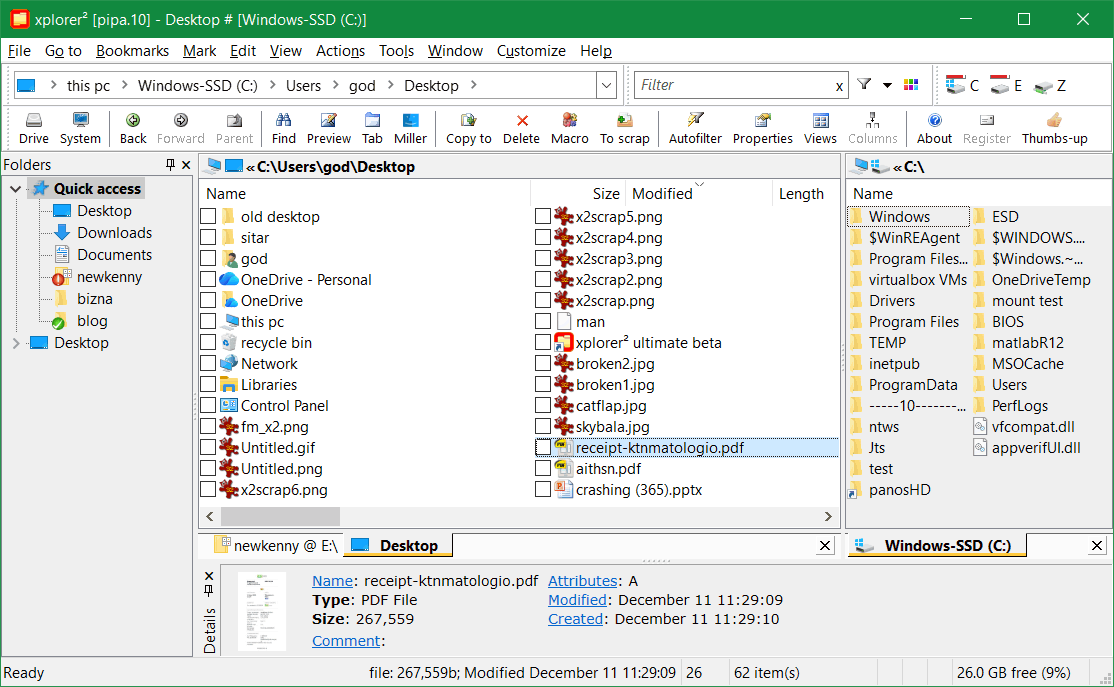
User Comment summary: Users praise xplorer² for its speed, configurability, and extensive feature set, including mass-renaming, tabs, and folder customization. It is noted for being lightweight, with low memory consumption. However, some users criticize its outdated UI and lack of intuitive features compared to other file managers. Overall, xplorer² is recognized for boosting productivity and being a valuable tool.
My quick impression: Had it not been for Total Commander xplorer² would get the dubious prize of ugliest file manager. Where TC looks like windows 3.1 program manager, xplorer² reminds one of windows 98 explorer. It is no oil painting. But it is very closely linked to windows explorer model in terms of browsing, selection, shell extensions etc. A completely new user should get going immediately, faster than any of the other programs in this review. That goes for all simple file management, copy/paste, rename and delete.
Obviously I am very biased here, having written the program according to my needs and character traits. My digital offspring takes after myself, being terse and generic, requiring some imagination to reach a complex goal from the available tools. Perhaps that's the reason why it is especially popular with programmers (so I hear).
The UI may not be flashy but it is very ergonomic and undaunting. All the peripheral panels (tree/preview/etc) are part of a dockable pane framework, and can be moved around — a unique feature in this competition; all the other programs get the folder tree fixed on the left for example. For people that prefer simplicity, it can even hide most menu commands and present just the basic operations. Plenty of complexity under the hood naturally, for the more demanding users. All options and even menu commands are searchable by keyword, in case you forgot how to do some infrequent file operation.
|
PROS
Complete windows explorer replacement
Lightweight and productive UI
|
CONS
Limited undo
It could use a GUI facelift
|
XYplorer
XYplorer is a smart looking file manager with lots of innovative features and incessant development (as you can tell by the galloping version numbers). According to their website:
XYplorer is a file manager for Windows. It features tabbed browsing, a powerful file search, a versatile preview, a highly customizable interface, an optional dual pane, and many unique ways to efficiently automate repetitive tasks. It’s fast, light and portable
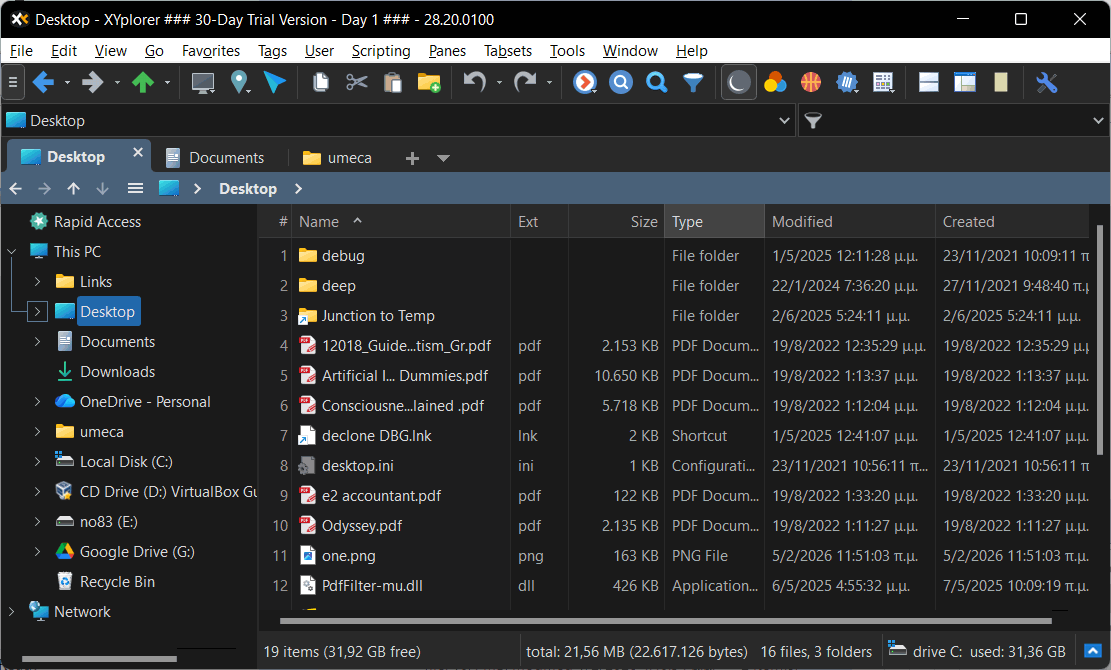
User Comment summary: XYplorer is praised for its speed, customization, and powerful features like tabbed browsing, scripting, and an efficient search function. Users appreciate the product's adaptability, with many commenting on how it enhances their workflow. While highly configurable, some users find its extensive options overwhelming and suggest that it's more suitable for advanced users. There are also minor criticisms regarding its lack of a Linux version and occasional stability issues. Its reasonable cost, lifetime license, and excellent support are additional positives mentioned by users.
My quick impression: XYplorer is written in Visual Basic, hardly the computer language you'd expect for a low level tool and with such breadth of features... but Donald somehow made it! Until recently it was 32 bit only, but I see now there is a 64 bit version that can work closely with all windows shell features (previewers, text filters and all the other shell extensions). I don't know why but it couldn't read virtualbox's network drive \\VBOXSVR — I had to map it to a drive letter to do the speed comparison tests. Perhaps a glitch with the 64 bit version?
Other than this small glitch I can't find anything wrong with XYplorer. It works as windows file explorer with the usual mouse selection and drag-drop model. It looks well-polished and manages to hide its complexity. Its menus are overly verbose for my liking, for example the Rename special submenu is full of various presets, that are hard to search for — and what if you want to do something a little different? Come to think about it, where is the bulk rename dialog? But I digress.
I played a little with the file search panel, again I find it rather busy, spread out in several tabs and making it hard to get an overview of what you are searching. The search speed is superb especially if you only seek names. When it comes to text content search in documents, it works with all the usual office and PDF file types. I notice that the preview panel doesn't highlight the search keywords for the matching files (not even for plain text files).
|
PROS
Plenty of file management power
Pretty to look at
|
CONS
Verbose menus and nauseating number of settings
Dual pane was an afterthought
|
File management performance results
We have reached the essence of this comparative review, performance data on the job of actually managing files. Which program out of the above 5 will find be fastest in various real life tasks? Obviously there could be a million different tests as these programs can do tons of things with files and folders. So I concentrated on a few typical tasks that a computer programmer would face daily. The idea is to stress-test each program in larger folders and reveal their inner workings. In particular I examined:
- Startup time. Warm up test, will indicate how responsive is each program
- Average resource usage. Focusing on memory consumption after browsing a few folders
- Complex sorting. Arrange the windows SYSTEM32 folder where DLLs are located (4547 files) in terms of Product version (e.g. BDSVC.DLL version 10.0.22000.1042). This kind of file property is quite slow to extract and sort upon.
- Search for text in code base. Search in Sumatra PDF source code repository (5457 plain text files total 220.9MB) for contained text. Reveals plain text search strength.
- Search document collection. Find a keyword in a typical "office" collection (DOC/PDF/XLS etc, 362 files 147.8MB total size). Will test searching through text filters (IFilter)
All content searches were done in "slow" motion, without access to any search index, through a \\vboxsvr network path.
Here are the timing results of the comparative test: (best results highlighted in green and worst in red). Each test was repeated twice to get the average time. Obviously given the nature of the speed tests, you prefer a program that takes less time to deliver the results:
|
NOTES
[1] One commander shows very few file properties (name/date/size) so T3 could not be done
[2] One commander can only search by Name (!?) so no content searches are possible.
[3] Out of the box Total commander could only search in Word DOC files, not PDF. Therefore only 7 hits were found out of the 28 correct documents. Obviously with the correct plugin TC should be able to search in PDFs. Therefore this "fast" result is ignored (increased by a factor of 28/7 to 12.48 sec).
One could argue that these differences are academic. What does it matter whether a program opens in one or two seconds? It is an inconsequential "advantage". Still this review is all about kudos, and laurels should be lain where deserved.
First off, One commander [O1] is clearly in a different class. More show than go. It merely "excels" at gobbling up 10 times more (!) system resources for basically a visual fiesta. It wasn't capable of executing most tasks.
I must grant that [O1] is very fast in plain name searches, so fast that I believe it is using some sort of database/cache of its own.
Regarding the remaining 4 "big time" contenders, the clear winner is Total commander, even if it cannot search in PDFs out of the box. It uses up less resources and gets the results in faster. xplorer² is a close second in all measured tests. Personally I was surprised with Directory opus, the supposed "rolls royce" of file managers, being consistently the slower program by far — up to 10 times slower in sorting for example, and 3-4 times slower in plain text search.
I don't understand why XYplorer was so slow in plain text search and so fast with text filters. It doesn't compute... but so it was. Perhaps some tweaking issue? (ps. I hear that it is a bug with the 64 bit version only?)
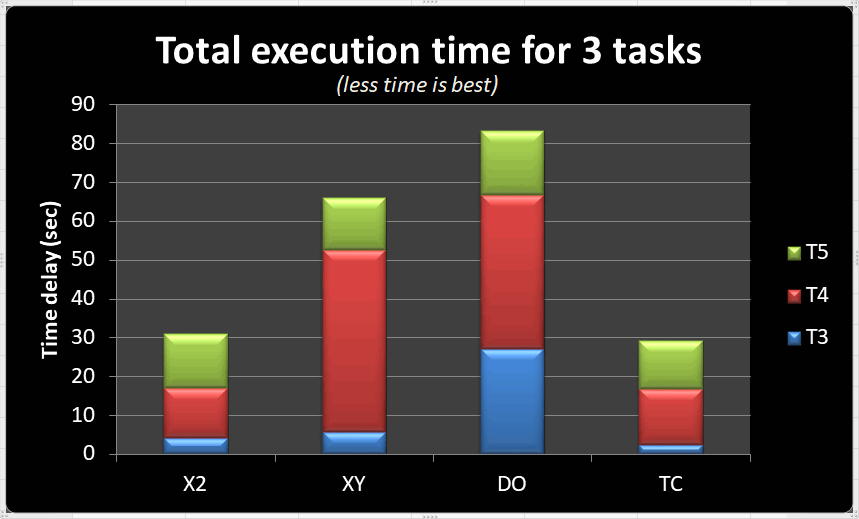
As you can see from these results, what matters more isn't how the computer program looks but how efficiently it performs. We are not shopping for oil paintings to hang on the wall, but for heavy duty tools. Which one would you pick?
xplorer² has been lagging in popularity lately FWIW, but I must award the file management championship to it. The pretty competition [DO and XY] have too many features for their own good — and are much slower. And [TC] is too far removed from the windows file explorer model. What if it is 5% quicker than xplorer² in file search? It boils down to how "handy" a file management tool is, both for everyday and for advanced tasks.
🏆 xplorer² by Zabkat LTD
So the title for the best explorer replacement tool goes to the in-house product xplorer², how predictable!? But wait, this is not a marketing scam, this acclaim is backed by reproducible evidence. It is almost identical in performance and resource use as Total Commander but with a modern streamlined interface. It has the right level of everyday power so you can be in control without being intimidated by unfathomable configurability — "no PhD required".
File managers are mostly for "mature" computer users that appreciate efficiency — and we are not getting any younger. You can't teach old dogs new tricks as the saying goes. Why would you switch if you have put in all the effort to learn your current explorer replacement tool, even if it isn't the fastest or prettiest?
- Switching is easy; xplorer² is intuitive and simple for everyday tasks.
- It has the easiest learning curve when the going gets tough.
- It is demonstrably lighter and faster.
- Solid in reliability (bug free) for all Windows versions XP/7/10/11
- Packed with unique timesaving features like spreadsheet property change, dual previews and more.
- Decent help available (documentation) and responsive email support.
Especially for Total Commander users, xplorer² supports most of the numerous WDX/WCX/WLX plugins that you may be dependent upon, as well as all the shell extensions that are available. Please download the fully functional free trial and let your productivity soar!
Thank you!
